Do Webcams Have Microphones? Everything You Need to Know
If you have ever jumped into a Zoom call without a headset and still somehow managed to speak and be heard, your webcam’s built-in microphone deserves some credit. But how common are these built-in mics, where exactly are they hiding inside the camera, and should you actually rely on one for serious work? This guide breaks all of that down.
Quick Answer
Yes, roughly 98% of consumer and business webcams ship with a built-in microphone. These are typically tiny MEMS (Micro-Electro-Mechanical Systems) chips embedded directly into the front face of the camera housing. The only exceptions are specialized, privacy-focused webcams that deliberately leave out audio hardware entirely to prevent remote eavesdropping.
Does Every Webcam Come with a Built-In Microphone by Default?
The short answer is almost always yes. The consumer electronics market has treated integrated audio as a baseline feature for years, and for good reason it makes the webcam a complete, plug-and-play communication device right out of the box.
Even on dirt-cheap generic webcams priced under $10, hardware teardowns show that manufacturers still carve out space on the printed circuit board (PCB) for a basic analog MEMS sensor. Why? Because the chip itself costs just a few cents, and it lets the product get marketed as a full video conferencing solution without any add-ons.
Internally, these webcams use a composite USB controller chip that handles both the video stream from the CMOS image sensor and the digitized audio from the microphone then routes everything down a single USB cable to your computer. One cable, one device, everything works.
Are There Webcams Without a Built-In Microphone?
Yes, but they are a deliberate choice, not the norm.
In high-security environments think defense contractor offices, financial trading floors, or government boardrooms a software mute is not considered safe enough. Why? Because malware can silently reactivate a microphone at the driver level without triggering any visible indicator on screen.
The only truly secure solution is a webcam that physically has no microphone hardware on the board at all. No chip, no audio traces, nothing to activate. A prominent example is the AIRHUG 02, a webcam built specifically around this constraint.
It delivers solid optical performance a 5MP CMOS sensor capable of 2K QHD video at 30 frames per second but its internal PCB contains zero audio components. There is no microphone, no analog-to-digital converter, no audio signal path whatsoever. No software vulnerability on Earth can turn it into a listening device, because there is nothing to activate.
A Brief History: How Webcams and Microphones Ended Up Together
Getting video and audio to flow reliably over a single USB connection took decades of hardware and software standardization. Early peripheral setups were fragmented separate video capture cards, dedicated analog mic inputs, proprietary drivers that only worked on specific operating systems.
| Year | Milestone | What It Changed |
| 1994 | Connectix QuickCam (Mac) | First consumer webcam with an integrated microphone |
| 1995 | Connectix QuickCam (PC) | Mic omitted due to limitations of the system bus at the time |
| 2003 | USB Video Class (UVC) Standard | Eliminated the need for proprietary drivers; OS could talk to any webcam natively |
| 2012 | UVC 1.5 Update | Added USB 3.0 support and native H.264 hardware encoding |
| 2026 | Modern Standard | Low-latency, synchronized audio and video over a single USB connection |
The big turning point was the USB Video Class (UVC) standard, introduced in 2003 by the USB Implementers Forum. By defining a universal way for operating systems to communicate with video devices, it eliminated manufacturer-specific drivers overnight. Pairing that with the USB Audio Class (UAC) standard gave webcams a clean, standardized path to stream synchronized, high-quality audio and video down one cable which is exactly how every modern webcam works today.
Where Is the Microphone Located on a Webcam?
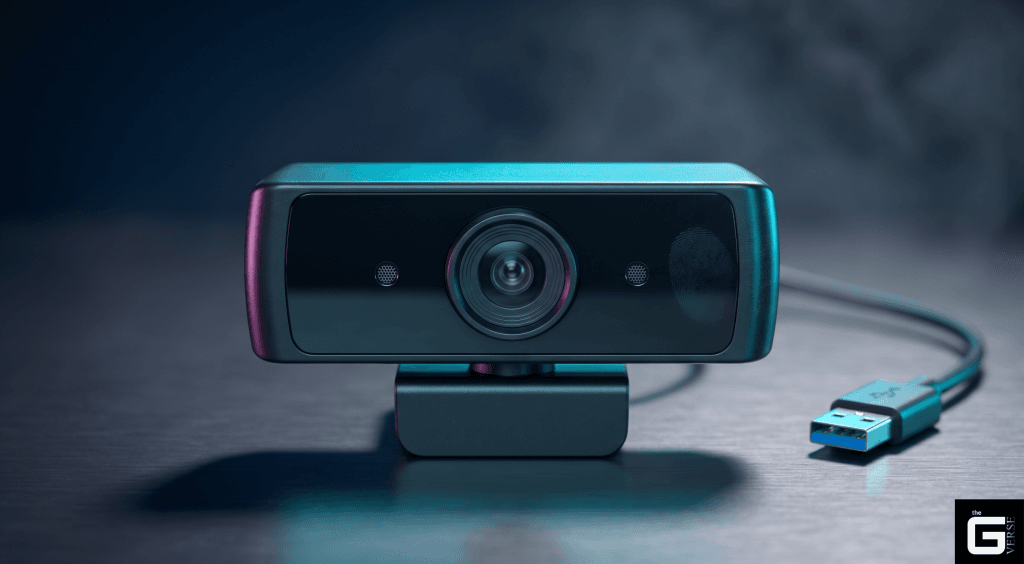
Because the lens has to sit at the center of the frame to capture an accurate, eye-level image, the microphone capsules get pushed to the edges or placed just below the lens housing. Their exact position depends on the webcam’s design philosophy.
Wide-body webcams like the Logitech C920 use a symmetrical layout, with two microphone pinhole ports positioned at the far left and far right edges of the bezel approximately 94mm apart. This physical separation serves two purposes: it creates a genuine stereo soundstage, and it keeps the sensitive microphone capsules away from the autofocus motor, which generates mechanical vibration that can bleed into the audio signal.
Compact, boxy webcams like the Anker PowerConf C200 place both mic ports directly below or beside the lens housing, close together. Since physical separation is minimal, these designs rely on advanced digital signal processing (DSP) to handle noise separation in software rather than through physical distance.
How to Find the Microphone Port on an Unfamiliar Webcam
Hold the webcam up under a bright light and look closely at the front bezel. You are looking for tiny circular pinholes — sub-millimeter openings drilled through the plastic or aluminum chassis — that clearly are not part of the lens assembly. They are usually positioned symmetrically next to the lens or integrated into the seam between the front bezel and rear casing.
One common issue over time: these tiny ports collect dust, lint, and airborne debris. When they clog, the sound becomes muffled or drops out entirely. People often blame driver problems or a faulty microphone when it is simply a blocked acoustic port.
How to clean a clogged webcam mic port:
- Unplug the webcam from your computer before you touch anything.
- Use a magnifying glass or macro lens to inspect the ports and locate the blockage.
- Gently loosen debris using a fine-bristled anti-static brush.
- Do not use metal needles or paperclips — they will puncture the mesh filter or destroy the internal diaphragm.
- Use a rubber bulb air blower to extract the loosened particles.
- Avoid canned compressed air — the pressurized propellant can rupture the delicate 0.5-micron silicon membrane inside.
What’s Inside a Webcam? (Hardware Breakdown)
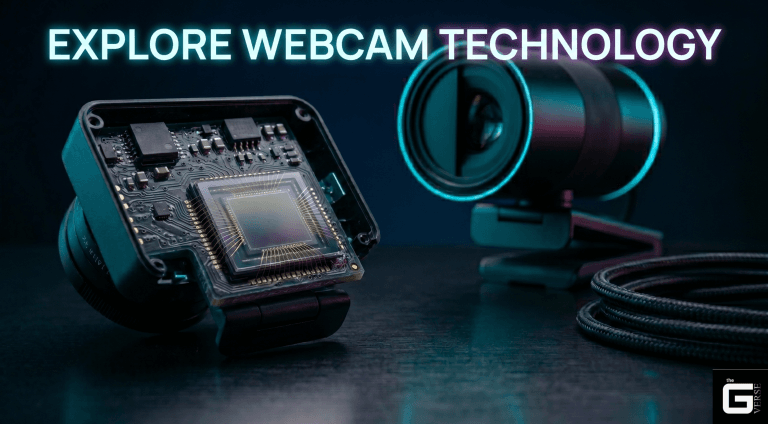
A webcam is essentially a small dedicated computer. Almost all of the heavy processing, image tuning, compression, color correction happens inside the webcam itself before any data reaches your PC’s CPU.
| Component | Example Hardware | What It Does |
| Lens Assembly | Multi-element glass/plastic stack | Focuses incoming light onto the image sensor |
| CMOS Image Sensor | Onsemi AR0235 | Converts focused light into raw analog signals |
| Analog-to-Digital Converter | Column-parallel integrated circuit | Converts analog signals into 10-bit or 12-bit digital data |
| Image Signal Processor (ISP) | Onsemi AP1302 | Handles color correction, sharpening, and noise reduction on-chip |
| USB Bridge Chip | Integrated UVC controller | Packages the final video and audio streams for USB output |
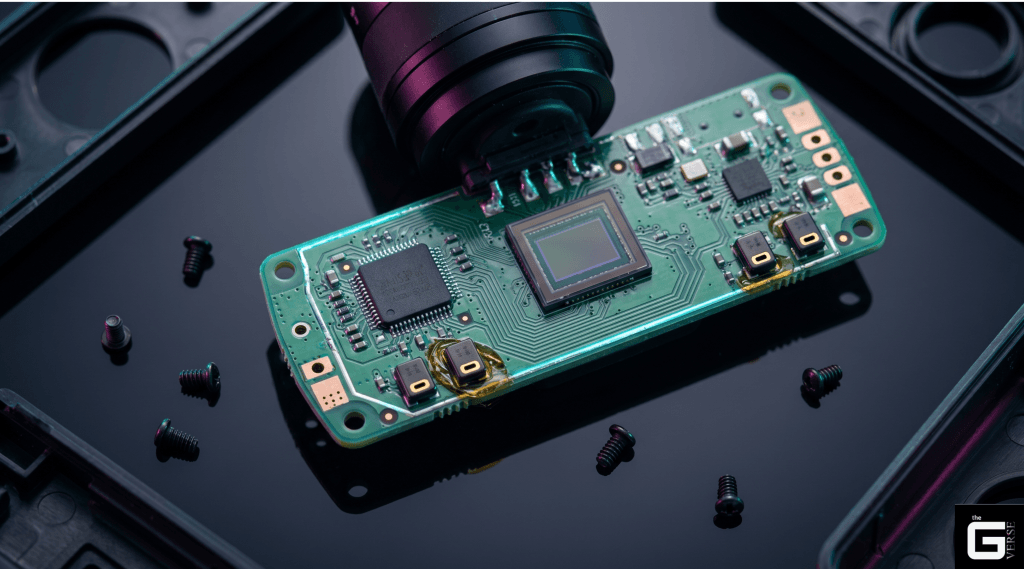
Omnidirectional vs. Directional Webcam Microphones: What Is the Difference?
Not all webcam microphones behave the same way. The two main configurations you will encounter are omnidirectional and directional beamforming.
Omnidirectional microphones pick up sound equally from all directions a full 360-degree sphere of coverage. This works well in group meeting rooms where multiple people are seated around a table. In a home office, though, it is a liability: it captures keyboard clatter, mouse clicks, and background noise with the same clarity as your voice.
Directional beamforming microphones use a dual-mic array and digital signal processing to focus the pickup pattern in one direction typically a 90-degree cone pointed straight at the speaker. The Anker PowerConf C200 is a good example, letting you toggle between a narrow 90-degree pickup for solo work and a wider 180-degree pattern for small group setups. These webcams also feature real-time echo cancellation to prevent feedback loops in full-duplex conversations.
Research Insight: How Beamforming Actually Works
Delay-and-sum beamforming works by exploiting the tiny time difference between a sound wave arriving at two spatially separated microphone capsules.
The time delay formula is calculated as:
Tau = (d * sin(Theta)) / c
- Tau: The time delay between the two microphone elements.
- d: The physical distance separating the elements.
- Theta: The arrival angle of the acoustic wavefront relative to the broadside axis.
- c: The speed of sound in air (approximately 343 m/s at 20°C).
By applying this calculated time-shift compensation to the digitized signals before summing them together, the microphone array selectively amplifies sound coming from directly ahead (Theta = 0°) while using destructive phase interference to suppress off-axis noise. In plain terms: the system uses math to “point” the microphone at you and tune out everything else. Reference: [1], [2]
Technical Comparison
| Parameter | Omnidirectional (e.g., Logitech C920e) | Directional Beamforming (e.g., Anker C200) |
| Pickup Angle | 360° spherical | Narrow 90° forward-facing cone |
| Background Noise Isolation | Poor — picks up room noise and keyboard sounds | High — suppresses off-axis environmental sounds significantly |
| Best Use Case | Multi-person conference rooms | Solo home offices and noisy environments |
| Frequency Response | Generally flat across the spectrum | Minor high-end roll-off from phase processing |
How to Check If Your Webcam Has a Microphone on Windows 11
When you plug in a webcam, Windows enumerates it as a composite USB device — meaning the OS registers both the video and audio components separately. Here is how to verify that the microphone is detected and enabled:
Step 1 — Open Sound Settings Press Win + I to open Settings. Navigate to System → Sound.
Step 2 — Check the Input Section Scroll down to Input and look for your webcam’s name (e.g., “Microphone (HD Pro Webcam C920)”). If it appears, select it to view its properties and check signal levels.
Step 3 — Verify in Device Manager Right-click the Start button and open Device Manager. Expand Audio inputs and outputs. If a downward-pointing arrow appears on the webcam microphone icon, the device is disabled at the driver level.
Step 4 — Check Privacy Permissions Go to Settings → Privacy & Security → Microphone. Make sure Microphone access is toggled On, and that Let desktop apps access your microphone is also enabled. Without this, apps like Zoom, Teams, and Slack cannot access the mic regardless of hardware status.
How to Disable Your Webcam Microphone at the Driver Level (Windows)
If you want to fully deactivate the microphone — not just mute it in software — you need to disable it at the driver level. Software mutes can be overridden by malware; a driver-level block cannot be silently bypassed.
- Press Win + X and open Device Manager.
- Expand Audio inputs and outputs.
- Right-click your webcam’s microphone (e.g., “Microphone (HD Pro Webcam C920)”) and select Disable device.
- Confirm the prompt. A black downward arrow will appear on the icon, confirming the block is active at the kernel driver layer.
Fix: Windows 11 Camera App Crashes When Microphone Is Blocked
There is a well-known but poorly documented bug in the Windows 11 native Camera app. If you have revoked microphone permissions under Settings → Privacy & Security → Microphone, the Camera app will crash instantly — even if you only want to take a photo, not record audio.
Why it happens: The Camera app uses the Universal Windows Platform (UWP) media capture API, which requests access to both the camera and the microphone simultaneously during initialization. If microphone access is denied, the API throws a fatal Access Denied exception and the app crashes before it ever opens.
The Null Stream Fix:
This is a two-step workaround that keeps your audio private while letting the Camera app function normally.
Step 1 — Restore software-level permissions Go to Settings → Privacy & Security → Microphone and set both the global toggle and the Camera app toggle to On. This satisfies the UWP initialization check without actually opening your mic to recording.
Step 2 — Block the hardware at the system level Go to Settings → System → Sound → Input. Click on your active webcam microphone and under General → Audio, select Don’t allow.
Result: The Camera app launches successfully. The OS feeds the UWP API a silent empty data stream (a null stream), satisfying its initialization requirements — while your microphone is effectively disabled at the system level. Your room stays private.
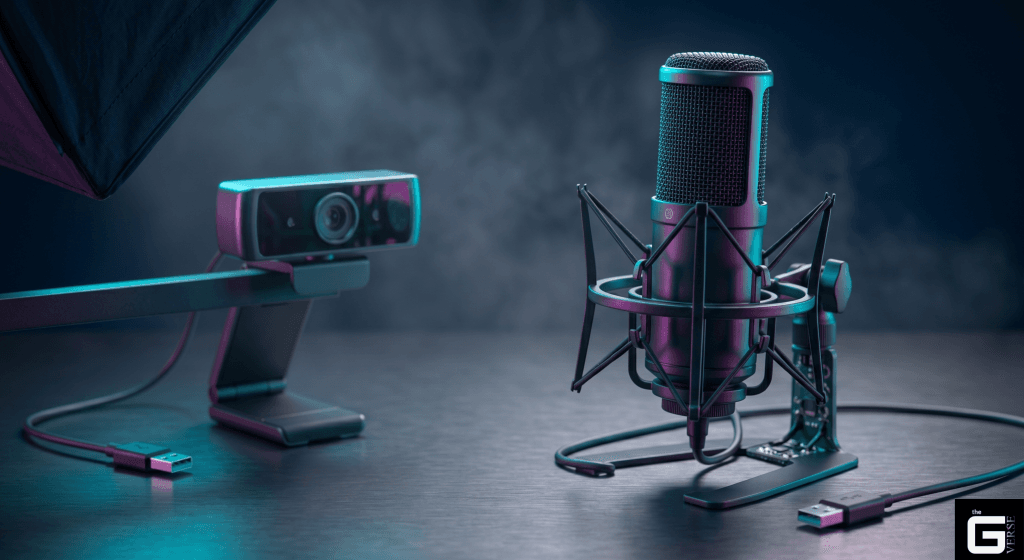
Built-In Webcam Mic vs. Dedicated External Microphone: Which Do You Actually Need?
The fundamental problem with webcam microphones is structural. Since the webcam clips onto the top of your monitor, it is mechanically coupled to your desk. Every keystroke, mouse click, or desk vibration sends physical energy up through the monitor stand and directly into the webcam’s plastic chassis. Because MEMS microphones have no shock isolation, that energy reaches the sensor and translates into a low-frequency rumble that can clip the preamp and distort your audio.
Dedicated desktop microphones sit on isolated stands or boom arms with elastic shock mounts that decouple the capsule from surface vibration entirely.
| Parameter | Integrated Webcam Mic | Dedicated Desktop USB Mic |
| Capsule Size | 3 × 4 mm MEMS | 16–25 mm large-diaphragm |
| Acoustic Overload Point | ~120 dB SPL | 135–146 dB SPL |
| Signal-to-Noise Ratio | 58–64 dBA | 74–80 dBA |
| Mechanical Shock Isolation | None — rigid plastic housing | Elastic suspension shock mount |
The difference in signal-to-noise ratio is the most practically important spec here. A higher SNR means less background hiss at normal listening volumes the kind of subtle noise that makes your audio sound cheap and fatiguing over a long call.
When Is a Webcam Mic Good Enough?
Use the integrated mic if:
- Your calls are short internal team check-ins where audio quality is not being evaluated
- Your room is carpeted and furnished, which absorbs reflections naturally
- Your webcam uses directional beamforming that actively suppresses keyboard noise
Switch to a dedicated external microphone if:
- Your work involves client-facing presentations, webinars, or video content
- You type on a mechanical keyboard (especially clicky or tactile switches)
- Your room has hard reflective surfaces like wood floors, glass desks, or bare drywall
Best Webcams Under $100 with Good Built-In Microphone Quality
If you need a solid all-in-one option that does not require a separate microphone, these two models consistently deliver:
| Webcam | Max Resolution | Mic Type | Why It Stands Out |
| Anker PowerConf C200 | 2K QHD @ 30fps | Dual directional beamforming | Switchable 90°/180° pickup patterns, strong ANC |
| Logitech C920x Pro HD | 1080p FHD @ 30fps | Dual omnidirectional stereo | Wide 94mm stereo separation, RightLight 2 auto exposure |
Troubleshooting: Why Is My Webcam Microphone Not Picking Up Sound?
In most cases, a webcam mic that stops working is not a hardware failure. These are the three most common causes:
| Cause | What Is Happening | How to Fix It |
| USB power starvation | An unpowered USB hub drops voltage below the threshold needed by the audio chip, while video continues to work fine | Connect the webcam directly to a motherboard port or use an active powered USB hub |
| Enterprise security block | Corporate antivirus software flags composite UAC/UVC drivers as an unauthorized hardware vector and blocks audio initialization | Add your conferencing app (Zoom, Teams) to the authorized access list in your antivirus settings |
| Windows Camera app crash | Microphone permission revocation causes a fatal exception during UWP media capture initialization | Apply the Null Stream Fix described above |
Privacy Myths and Real Security Vulnerabilities
The sliding cover myth: A physical plastic shutter over your webcam lens blocks the camera but it does absolutely nothing to the microphone. Sound passes straight through plastic. If your system is compromised, an attacker can silently initialize the USB Audio Class (UAC) driver and capture room audio without ever triggering the activity LED, which on most webcams is only connected to the optical sensor, not the microphone circuit.
What actually secures your audio:
- Driver-level disable: Deactivating the microphone in Device Manager blocks it at the kernel layer. This cannot be bypassed silently.
- Physical omission: Using a mic-free webcam (like the AIRHUG 02) means there is no hardware to activate, period.
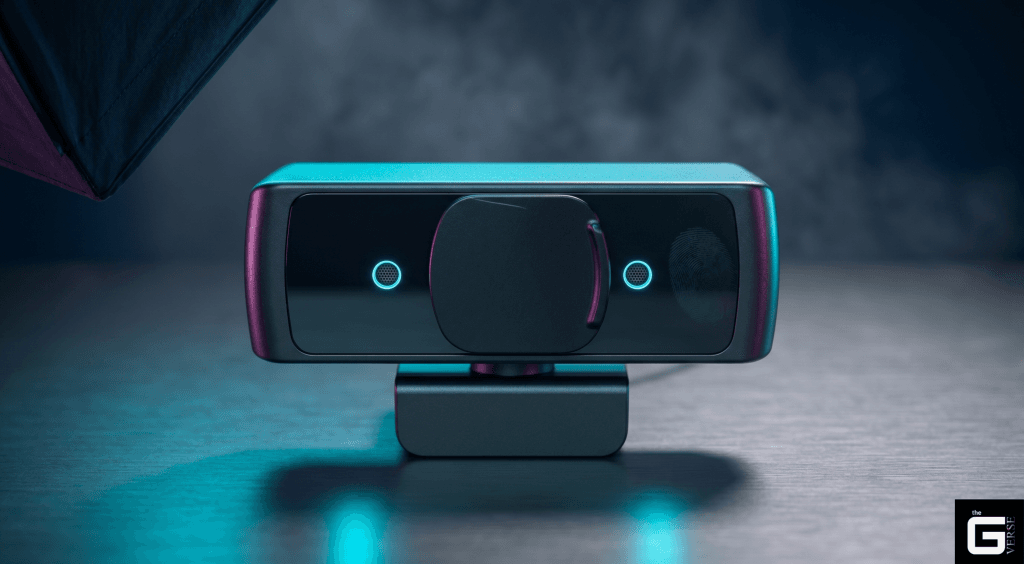
Tape over the lens is not a privacy solution. It is half of one.
Frequently Asked Questions
How do I know if my webcam has a built-in microphone? Look at the front bezel for one or two tiny pinholes positioned near the lens. If you see them, there is a microphone inside. You can also open Device Manager → Audio inputs and outputs to see if the webcam shows up as an audio device.
Does a webcam microphone work well enough for Zoom calls? For casual internal calls in a quiet room, yes. For professional presentations, client-facing video, or noisy environments, a dedicated external microphone will make a noticeable difference in how you sound.
Why is Windows using my webcam mic instead of my headset? When a new USB composite device is connected, Windows can automatically reassign it as the default audio input. Fix it by going to Settings → System → Sound and manually selecting your headset as the preferred input device.
Can someone listen through my webcam microphone if I cover the lens? Yes. Covering the lens only blocks video. A compromised system can still activate the microphone silently. To prevent audio eavesdropping, disable the microphone at the driver level in Device Manager or use a webcam that physically has no microphone.
Is the built-in mic enough, or do I need a separate microphone? It depends on what you are doing. For quick check-in calls in a quiet space, the built-in mic is fine. For anything you care about — content creation, professional meetings, streaming a dedicated mic is worth the investment.
The Real Verdict
A webcam’s built-in microphone is a convenience feature, not a professional tool. The tiny MEMS capsules inside most webcams cannot overcome structural desk vibrations, thin frequency response, and high noise floors, not without heavy digital processing that introduces its own artifacts.
For everyday video calls, they are perfectly adequate. For anything where your audio actually matters, client presentations, recorded content, live streaming, disable the webcam mic at the driver level and invest in a properly isolated dedicated microphone. The difference in how you sound to other people is immediate and significant.
Do Webcams Have Microphones? Everything You Need to Know
If you have ever jumped into a Zoom call without a headset and still somehow managed to speak and be heard, your webcam’s built-in microphone deserves some credit. But how common are these built-in mics, where exactly are they hiding inside the camera, and should you actually rely on one for serious work? This guide breaks all of that down.
Quick Answer
Yes, roughly 98% of consumer and business webcams ship with a built-in microphone. These are typically tiny MEMS (Micro-Electro-Mechanical Systems) chips embedded directly into the front face of the camera housing. The only exceptions are specialized, privacy-focused webcams that deliberately leave out audio hardware entirely to prevent remote eavesdropping.
Does Every Webcam Come with a Built-In Microphone by Default?
The short answer is almost always yes. The consumer electronics market has treated integrated audio as a baseline feature for years, and for good reason it makes the webcam a complete, plug-and-play communication device right out of the box.
Even on dirt-cheap generic webcams priced under $10, hardware teardowns show that manufacturers still carve out space on the printed circuit board (PCB) for a basic analog MEMS sensor. Why? Because the chip itself costs just a few cents, and it lets the product get marketed as a full video conferencing solution without any add-ons.
Internally, these webcams use a composite USB controller chip that handles both the video stream from the CMOS image sensor and the digitized audio from the microphone then routes everything down a single USB cable to your computer. One cable, one device, everything works.
Are There Webcams Without a Built-In Microphone?
Yes, but they are a deliberate choice, not the norm.
In high-security environments think defense contractor offices, financial trading floors, or government boardrooms a software mute is not considered safe enough. Why? Because malware can silently reactivate a microphone at the driver level without triggering any visible indicator on screen.
The only truly secure solution is a webcam that physically has no microphone hardware on the board at all. No chip, no audio traces, nothing to activate. A prominent example is the AIRHUG 02, a webcam built specifically around this constraint.
It delivers solid optical performance a 5MP CMOS sensor capable of 2K QHD video at 30 frames per second but its internal PCB contains zero audio components. There is no microphone, no analog-to-digital converter, no audio signal path whatsoever. No software vulnerability on Earth can turn it into a listening device, because there is nothing to activate.
A Brief History: How Webcams and Microphones Ended Up Together
Getting video and audio to flow reliably over a single USB connection took decades of hardware and software standardization. Early peripheral setups were fragmented — separate video capture cards, dedicated analog mic inputs, proprietary drivers that only worked on specific operating systems.
| Year | Milestone | What It Changed |
| 1994 | Connectix QuickCam (Mac) | First consumer webcam with an integrated microphone |
| 1995 | Connectix QuickCam (PC) | Mic omitted due to limitations of the system bus at the time |
| 2003 | USB Video Class (UVC) Standard | Eliminated the need for proprietary drivers; OS could talk to any webcam natively |
| 2012 | UVC 1.5 Update | Added USB 3.0 support and native H.264 hardware encoding |
| 2026 | Modern Standard | Low-latency, synchronized audio and video over a single USB connection |
The big turning point was the USB Video Class (UVC) standard, introduced in 2003 by the USB Implementers Forum. By defining a universal way for operating systems to communicate with video devices, it eliminated manufacturer-specific drivers overnight. Pairing that with the USB Audio Class (UAC) standard gave webcams a clean, standardized path to stream synchronized, high-quality audio and video down one cable which is exactly how every modern webcam works today.
Where Is the Microphone Located on a Webcam?
Because the lens has to sit at the center of the frame to capture an accurate, eye-level image, the microphone capsules get pushed to the edges or placed just below the lens housing. Their exact position depends on the webcam’s design philosophy.
Wide-body webcams like the Logitech C920 use a symmetrical layout, with two microphone pinhole ports positioned at the far left and far right edges of the bezel approximately 94mm apart. This physical separation serves two purposes: it creates a genuine stereo soundstage, and it keeps the sensitive microphone capsules away from the autofocus motor, which generates mechanical vibration that can bleed into the audio signal.
Compact, boxy webcams like the Anker PowerConf C200 place both mic ports directly below or beside the lens housing, close together. Since physical separation is minimal, these designs rely on advanced digital signal processing (DSP) to handle noise separation in software rather than through physical distance.
How to Find the Microphone Port on an Unfamiliar Webcam
Hold the webcam up under a bright light and look closely at the front bezel. You are looking for tiny circular pinholes — sub-millimeter openings drilled through the plastic or aluminum chassis — that clearly are not part of the lens assembly. They are usually positioned symmetrically next to the lens or integrated into the seam between the front bezel and rear casing.
One common issue over time: these tiny ports collect dust, lint, and airborne debris. When they clog, the sound becomes muffled or drops out entirely. People often blame driver problems or a faulty microphone when it is simply a blocked acoustic port.
How to clean a clogged webcam mic port:
- Unplug the webcam from your computer before you touch anything.
- Use a magnifying glass or macro lens to inspect the ports and locate the blockage.
- Gently loosen debris using a fine-bristled anti-static brush.
- Do not use metal needles or paperclips — they will puncture the mesh filter or destroy the internal diaphragm.
- Use a rubber bulb air blower to extract the loosened particles.
- Avoid canned compressed air — the pressurized propellant can rupture the delicate 0.5-micron silicon membrane inside.
What’s Inside a Webcam? (Hardware Breakdown)
A webcam is essentially a small dedicated computer. Almost all of the heavy processing, image tuning, compression, color correction happens inside the webcam itself before any data reaches your PC’s CPU.
| Component | Example Hardware | What It Does |
| Lens Assembly | Multi-element glass/plastic stack | Focuses incoming light onto the image sensor |
| CMOS Image Sensor | Onsemi AR0235 | Converts focused light into raw analog signals |
| Analog-to-Digital Converter | Column-parallel integrated circuit | Converts analog signals into 10-bit or 12-bit digital data |
| Image Signal Processor (ISP) | Onsemi AP1302 | Handles color correction, sharpening, and noise reduction on-chip |
| USB Bridge Chip | Integrated UVC controller | Packages the final video and audio streams for USB output |
Omnidirectional vs. Directional Webcam Microphones: What Is the Difference?
Not all webcam microphones behave the same way. The two main configurations you will encounter are omnidirectional and directional beamforming.
Omnidirectional microphones pick up sound equally from all directions a full 360-degree sphere of coverage. This works well in group meeting rooms where multiple people are seated around a table. In a home office, though, it is a liability: it captures keyboard clatter, mouse clicks, and background noise with the same clarity as your voice.
Directional beamforming microphones use a dual-mic array and digital signal processing to focus the pickup pattern in one direction typically a 90-degree cone pointed straight at the speaker. The Anker PowerConf C200 is a good example, letting you toggle between a narrow 90-degree pickup for solo work and a wider 180-degree pattern for small group setups. These webcams also feature real-time echo cancellation to prevent feedback loops in full-duplex conversations.
🔬Research Insight: How Beamforming Actually Works
Delay-and-sum beamforming works by exploiting the tiny time difference between a sound wave arriving at two spatially separated microphone capsules.
The time delay formula is calculated as:
Tau = (d * sin(Theta)) / c
- Tau: The time delay between the two microphone elements.
- d: The physical distance separating the elements.
- Theta: The arrival angle of the acoustic wavefront relative to the broadside axis.
- c: The speed of sound in air (approximately 343 m/s at 20°C).
By applying this calculated time-shift compensation to the digitized signals before summing them together, the microphone array selectively amplifies sound coming from directly ahead (Theta = 0°) while using destructive phase interference to suppress off-axis noise. In plain terms: the system uses math to “point” the microphone at you and tune out everything else.
Technical Comparison
| Parameter | Omnidirectional (e.g., Logitech C920e) | Directional Beamforming (e.g., Anker C200) |
| Pickup Angle | 360° spherical | Narrow 90° forward-facing cone |
| Background Noise Isolation | Poor — picks up room noise and keyboard sounds | High — suppresses off-axis environmental sounds significantly |
| Best Use Case | Multi-person conference rooms | Solo home offices and noisy environments |
| Frequency Response | Generally flat across the spectrum | Minor high-end roll-off from phase processing |
How to Check If Your Webcam Has a Microphone on Windows 11
When you plug in a webcam, Windows enumerates it as a composite USB device — meaning the OS registers both the video and audio components separately. Here is how to verify that the microphone is detected and enabled:
Step 1 — Open Sound Settings Press Win + I to open Settings. Navigate to System → Sound.
Step 2 — Check the Input Section Scroll down to Input and look for your webcam’s name (e.g., “Microphone (HD Pro Webcam C920)”). If it appears, select it to view its properties and check signal levels.
Step 3 — Verify in Device Manager Right-click the Start button and open Device Manager. Expand Audio inputs and outputs. If a downward-pointing arrow appears on the webcam microphone icon, the device is disabled at the driver level.
Step 4 — Check Privacy Permissions Go to Settings → Privacy & Security → Microphone. Make sure Microphone access is toggled On, and that Let desktop apps access your microphone is also enabled. Without this, apps like Zoom, Teams, and Slack cannot access the mic regardless of hardware status.
How to Disable Your Webcam Microphone at the Driver Level (Windows)
If you want to fully deactivate the microphone — not just mute it in software — you need to disable it at the driver level. Software mutes can be overridden by malware; a driver-level block cannot be silently bypassed.
- Press Win + X and open Device Manager.
- Expand Audio inputs and outputs.
- Right-click your webcam’s microphone (e.g., “Microphone (HD Pro Webcam C920)”) and select Disable device.
- Confirm the prompt. A black downward arrow will appear on the icon, confirming the block is active at the kernel driver layer.
Fix: Windows 11 Camera App Crashes When Microphone Is Blocked
There is a well-known but poorly documented bug in the Windows 11 native Camera app. If you have revoked microphone permissions under Settings → Privacy & Security → Microphone, the Camera app will crash instantly — even if you only want to take a photo, not record audio.
Why it happens: The Camera app uses the Universal Windows Platform (UWP) media capture API, which requests access to both the camera and the microphone simultaneously during initialization. If microphone access is denied, the API throws a fatal Access Denied exception and the app crashes before it ever opens.
The Null Stream Fix:
This is a two-step workaround that keeps your audio private while letting the Camera app function normally.
Step 1 — Restore software-level permissions Go to Settings → Privacy & Security → Microphone and set both the global toggle and the Camera app toggle to On. This satisfies the UWP initialization check without actually opening your mic to recording.
Step 2 — Block the hardware at the system level Go to Settings → System → Sound → Input. Click on your active webcam microphone and under General → Audio, select Don’t allow.
Result: The Camera app launches successfully. The OS feeds the UWP API a silent empty data stream (a null stream), satisfying its initialization requirements — while your microphone is effectively disabled at the system level. Your room stays private.
Built-In Webcam Mic vs. Dedicated External Microphone: Which Do You Actually Need?
The fundamental problem with webcam microphones is structural. Since the webcam clips onto the top of your monitor, it is mechanically coupled to your desk. Every keystroke, mouse click, or desk vibration sends physical energy up through the monitor stand and directly into the webcam’s plastic chassis. Because MEMS microphones have no shock isolation, that energy reaches the sensor and translates into a low-frequency rumble that can clip the preamp and distort your audio.
Dedicated desktop microphones sit on isolated stands or boom arms with elastic shock mounts that decouple the capsule from surface vibration entirely.
| Parameter | Integrated Webcam Mic | Dedicated Desktop USB Mic |
| Capsule Size | 3 × 4 mm MEMS | 16–25 mm large-diaphragm |
| Acoustic Overload Point | ~120 dB SPL | 135–146 dB SPL |
| Signal-to-Noise Ratio | 58–64 dBA | 74–80 dBA |
| Mechanical Shock Isolation | None — rigid plastic housing | Elastic suspension shock mount |
The difference in signal-to-noise ratio is the most practically important spec here. A higher SNR means less background hiss at normal listening volumes — the kind of subtle noise that makes your audio sound cheap and fatiguing over a long call.
When Is a Webcam Mic Good Enough?
Use the integrated mic if:
- Your calls are short internal team check-ins where audio quality is not being evaluated
- Your room is carpeted and furnished, which absorbs reflections naturally
- Your webcam uses directional beamforming that actively suppresses keyboard noise
Switch to a dedicated external microphone if:
- Your work involves client-facing presentations, webinars, or video content
- You type on a mechanical keyboard (especially clicky or tactile switches)
- Your room has hard reflective surfaces like wood floors, glass desks, or bare drywall
Best Webcams Under $100 with Good Built-In Microphone Quality
If you need a solid all-in-one option that does not require a separate microphone, these two models consistently deliver:
| Webcam | Max Resolution | Mic Type | Why It Stands Out |
| Anker PowerConf C200 | 2K QHD @ 30fps | Dual directional beamforming | Switchable 90°/180° pickup patterns, strong ANC |
| Logitech C920x Pro HD | 1080p FHD @ 30fps | Dual omnidirectional stereo | Wide 94mm stereo separation, RightLight 2 auto exposure |
Troubleshooting: Why Is My Webcam Microphone Not Picking Up Sound?
In most cases, a webcam mic that stops working is not a hardware failure. These are the three most common causes:
| Cause | What Is Happening | How to Fix It |
| USB power starvation | An unpowered USB hub drops voltage below the threshold needed by the audio chip, while video continues to work fine | Connect the webcam directly to a motherboard port or use an active powered USB hub |
| Enterprise security block | Corporate antivirus software flags composite UAC/UVC drivers as an unauthorized hardware vector and blocks audio initialization | Add your conferencing app (Zoom, Teams) to the authorized access list in your antivirus settings |
| Windows Camera app crash | Microphone permission revocation causes a fatal exception during UWP media capture initialization | Apply the Null Stream Fix described above |
Privacy Myths and Real Security Vulnerabilities
The sliding cover myth: A physical plastic shutter over your webcam lens blocks the camera but it does absolutely nothing to the microphone. Sound passes straight through plastic. If your system is compromised, an attacker can silently initialize the USB Audio Class (UAC) driver and capture room audio without ever triggering the activity LED, which on most webcams is only connected to the optical sensor, not the microphone circuit.
What actually secures your audio:
- Driver-level disable: Deactivating the microphone in Device Manager blocks it at the kernel layer. This cannot be bypassed silently.
- Physical omission: Using a mic-free webcam (like the AIRHUG 02) means there is no hardware to activate, period.
Tape over the lens is not a privacy solution. It is half of one.
Frequently Asked Questions
How do I know if my webcam has a built-in microphone? Look at the front bezel for one or two tiny pinholes positioned near the lens. If you see them, there is a microphone inside. You can also open Device Manager → Audio inputs and outputs to see if the webcam shows up as an audio device.
Does a webcam microphone work well enough for Zoom calls? For casual internal calls in a quiet room, yes. For professional presentations, client-facing video, or noisy environments, a dedicated external microphone will make a noticeable difference in how you sound.
Why is Windows using my webcam mic instead of my headset? When a new USB composite device is connected, Windows can automatically reassign it as the default audio input. Fix it by going to Settings → System → Sound and manually selecting your headset as the preferred input device.
Can someone listen through my webcam microphone if I cover the lens? Yes. Covering the lens only blocks video. A compromised system can still activate the microphone silently. To prevent audio eavesdropping, disable the microphone at the driver level in Device Manager or use a webcam that physically has no microphone.
Is the built-in mic enough, or do I need a separate microphone? It depends on what you are doing. For quick check-in calls in a quiet space, the built-in mic is fine. For anything you care about — content creation, professional meetings, streaming a dedicated mic is worth the investment.
The Real Verdict
A webcam’s built-in microphone is a convenience feature, not a professional tool. The tiny MEMS capsules inside most webcams cannot overcome structural desk vibrations, thin frequency response, and high noise floors, not without heavy digital processing that introduces its own artifacts.
For everyday video calls, they are perfectly adequate. For anything where your audio actually matters, client presentations, recorded content, live streaming, disable the webcam mic at the driver level and invest in a properly isolated dedicated microphone. The difference in how you sound to other people is immediate and significant.